How to log in to the web management page of Halo
Introduction
After configuring the Halo successfully, you can check the internet status or upgrade the firmware of your Halo device via a web management page. This article aims to provide step-by-step instructions for logging into the web-based management interface of Halo effectively.
Requirements
One device that supports Windows, Mac OS, Android OS, and iOS, and can open web browsers, such as a phone, computer, or iPad.
Power on the Halo and wait for it to reboot completely.
Configuration
Note: Older web browsers may have compatibility issues with the router’s management page, such as login failures or missing features. For changing wireless settings or performing firmware updates, it is recommended to use a wired connection.
Step1. Connect your device to the Halo
Method 1: Wired
Connect the computer’s Ethernet port to one of the LAN ports on the Halo via an Ethernet cable.
Method 2: Wireless
Ensure the wireless device connects to the Halo's Wi-Fi network. which you configured during the internet setup. If you forget the password, open the MERCUSYS App and go to More > Wi-Fi Settings to check it.
Step 2. Access the web management page
It's recommended to use Firefox, Chrome, and Edge to access the web management page of the router.
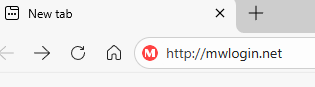
Launch a web browser, at the top of the window in the address bar type in http://mwlogin.net, and then press Enter. You may also use Halo's LAN IP address for login.
Note: To find the IP address, launch the MERCUSYS App and go to More > Advanced > LAN IP.
Step 3 (Optional). Allow access to the web management page
If your browser displays a "Privacy Error" warning about an insecure connection, click Advanced and select “Continue to mwlogin.net (unsafe)” or “Continue to 192.168.68.1 (unsafe)” for login. If this warning doesn't appear, skip directly to Step 4.
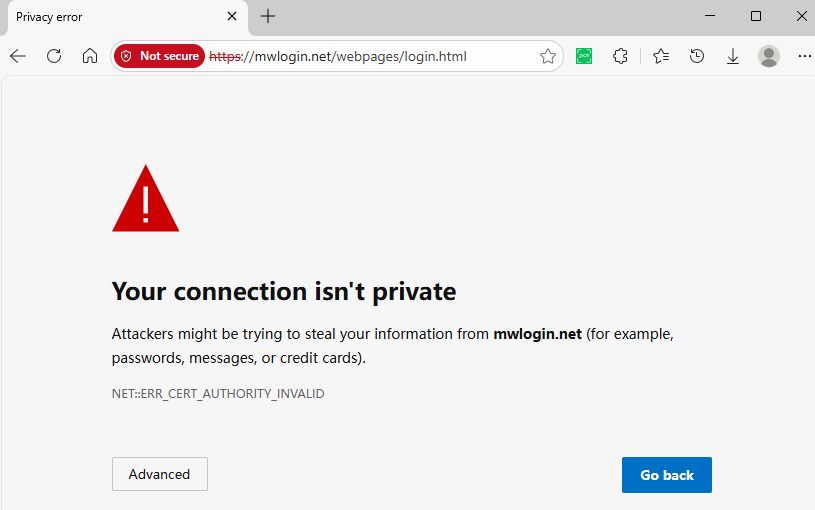
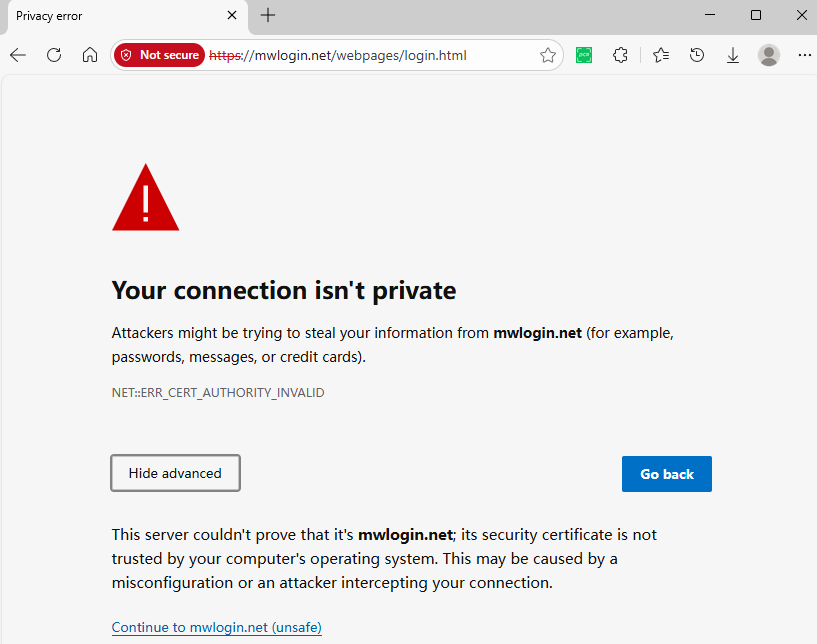
A warning message will show because mwlogin.net uses a self-signed certificate rather than one issued by a trusted authority. This is normal, and your connection between your browser and the mwlogin.net server remains secure.
Step 4. Enter password to sign in
The Owner MERCUSYS ID is the ID that you used to set up the Halo network via the MERCUSYS App.

If you can't access the web management page and see errors like "no internet" or "the website can't be reached", please refer to What can I do if I fail to access mwlogin.net?.
Get to know more details of each function and configuration please go to Support Center to download the manual of your product.